Why Your Print Looks Darker Than Your Screen (and How to Fix It)
It is the most common printing surprise there is. The photo looked perfect on your screen, then the print came back noticeably darker, with shadows that went muddy.
The print is usually not wrong. In most cases, the screen is.
The short answer: your screen is too bright
A screen shines light at you. A print can only reflect the light in the room. So a screen will always look brighter and punchier than paper.
On top of that, most monitors and laptops ship far brighter than is useful for editing prints. Typical screens run around 250 to 350 cd/m² (a measure of screen brightness), while the common guidance for print work is roughly 80 to 120 cd/m². Edit on a very bright screen and you darken the photo to make it look right, and that darkness shows up on paper.
A 30-second test
Open a plain white document on your screen. Hold a sheet of white printer paper next to it, in the light where you usually look at prints. If the screen glows much brighter than the paper, your screen is too bright for judging prints.
Five ways to fix it
1. Turn your screen brightness down
Lower it until the white on screen looks close to the white paper beside it. This single change fixes most dark prints. Turn off auto-brightness and night modes (like Night Shift or True Tone) while you edit, since they change what you see.
2. Calibrate if you print often
A calibration device sits on your screen and measures it, then sets brightness and color accurately. They typically cost a few hundred dollars and are worth it if you print regularly.
3. Look after your shadows
This matters even more in black and white, where so much of the mood lives in the dark tones. On a bright screen, deep shadows still show detail. On paper, the same tones can merge into solid black. Before exporting, check the histogram: if lots of the image is piled against the left edge, lift the shadows slightly.
4. Judge prints in good light
A print looked at under a dim, warm bulb will look darker and warmer than it really is. Check it near a window in daylight, or under a daylight-balanced bulb, before deciding it is too dark.
5. Make a test print
Before a large or expensive order, print one small copy. Compare it to your screen in good light and adjust the file if needed. A 4x6 is an inexpensive way to check.
Phone photos
Phones are among the brightest screens you own, especially outdoors, and they adjust themselves constantly. If you are ordering from a phone, expect prints to look a little darker than the phone shows. Brightening the file slightly before ordering often helps.
How we handle it
We print from calibrated monitors, and a person looks at every print. Unless you tell us otherwise, we adjust density and contrast to get the best print from your file. If you have already fine-tuned your files and want them printed exactly as they are, just tell us when you order.
If a print comes back darker than you expected, talk to us. We guarantee our work: we will reprint or refund.
Related: is your print tinted, not dark?
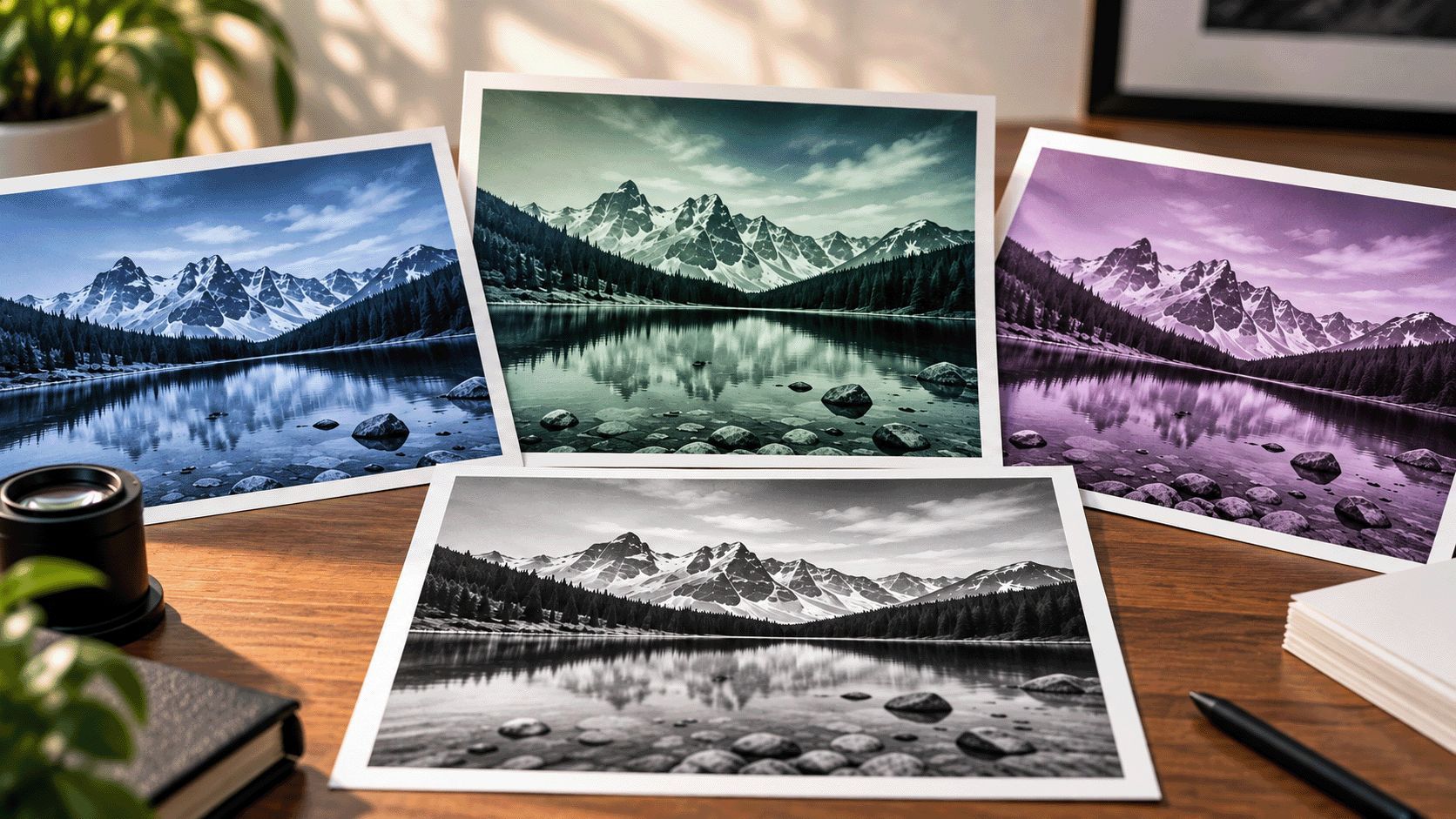
If the problem is a blue, green or purple cast rather than darkness, that is a different cause. See why black and white photos print blue, green or purple.
Frequently asked questions
What brightness should my monitor be for printing?
Common guidance is roughly 80 to 120 cd/m², toward the lower end in a dim room. Without a calibration device, use the paper test above.
Should I just brighten every file before printing?
Fix the screen first. If you cannot, a small, consistent brightening helps, but check with a test print.
Why do my prints look fine in one room and dark in another?
The light in the room changes how bright a print looks. Prints always look darker in dim light.
Prints checked by a person, not just a machine. True black and white prints on Ilford silver gelatin paper. Order black and white digital prints